What Is a WebP File and How Do You Open It?
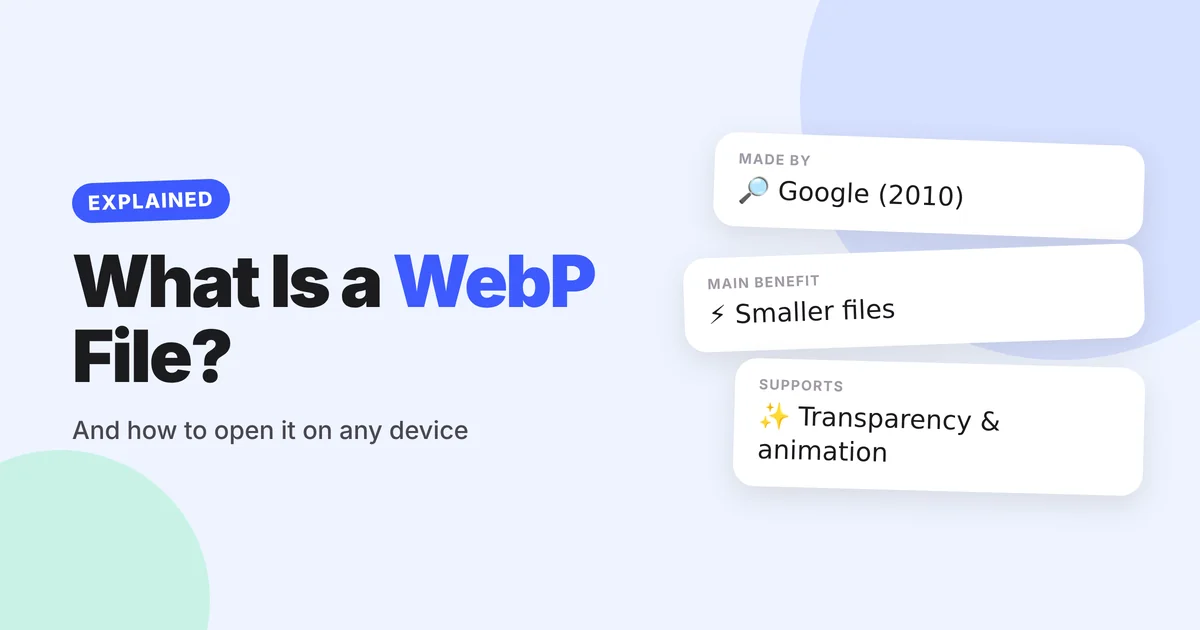
If you've ever saved an image from a website and noticed it ends in .webp instead of .jpg or .png, you're not alone. WebP has quietly become one of the most common image formats on the web. But what exactly is it, and why do some apps refuse to open it?
Here's a plain-English guide to WebP: what it is, why it's everywhere, and how to open or convert it when you need to.
What is WebP?
WebP (pronounced "weppy") is an image format created by Google and first released in 2010. Its goal was simple: make images on the web smaller, so pages load faster, without making them look worse.
WebP can do things that used to require several different formats:
- Lossy compression for photos, like JPG
- Lossless compression for graphics, like PNG
- Transparent backgrounds, like PNG
- Animation, like GIF
Why do websites use WebP?
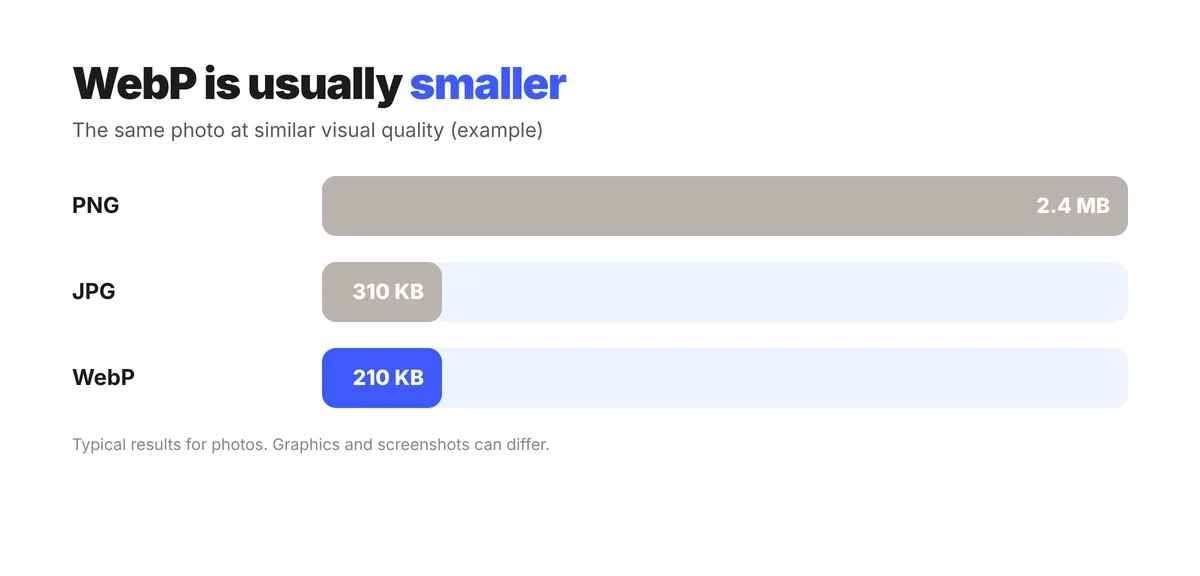
Mostly because it's small. A WebP image is usually 25 to 35% smaller than a JPG of similar quality, and often much smaller than a PNG. Smaller images mean faster pages, which keeps visitors happy and helps with search rankings. That's why big websites, online stores and many content management systems now serve images as WebP automatically.
Want to see the difference for yourself? Try converting a few of your own photos to WebP with our image compressor and compare the sizes.
How to open a WebP file
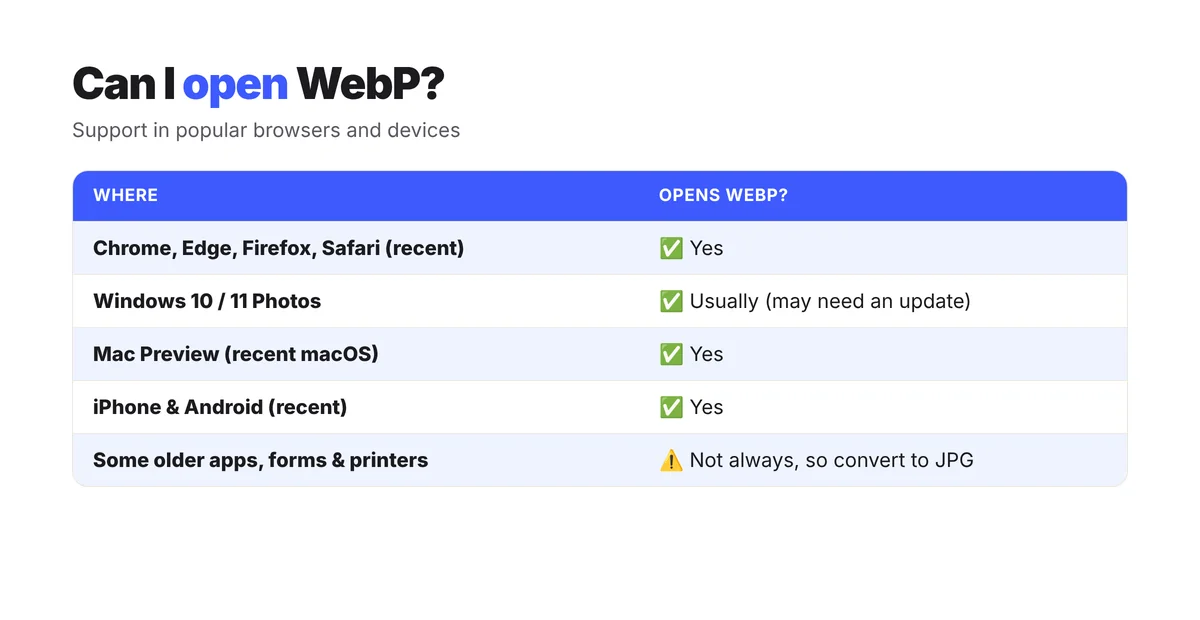
Today, most devices can open WebP without any extra software:
- Web browsers: current versions of Chrome, Edge, Firefox and Safari all display WebP. You can drag a WebP file into a browser window to view it.
- Windows: the Photos app on Windows 10 and 11 can usually open WebP. If it can't, check for updates in the Microsoft Store.
- Mac: Preview on recent versions of macOS opens WebP files.
- Phones: recent iPhones and Android phones display WebP in their photo and file apps.
Why some apps still won't accept WebP
Even though WebP is widely supported for viewing, some older software, upload forms, printing services and design tools still expect JPG or PNG. When that happens, the quickest fix is to convert the file.
How to convert WebP to JPG or PNG
- Open our free image converter.
- Choose JPG (best for photos and maximum compatibility) or PNG (if you need to keep a transparent background).
- Add your WebP files and download the converted images.
For step-by-step instructions on each device, read how to convert WebP to JPG on iPhone, Android and PC.
Should you use WebP for your own images?
- For your website or blog: yes. WebP will make your pages lighter and faster.
- For sharing with friends or uploading to forms: JPG is still the safest choice because everything accepts it.
- For logos with transparency: WebP or PNG both work. PNG is more compatible with older tools.
- For printing: stick with high-quality JPG, PNG or the format your printer asks for.
Frequently asked questions
Is WebP better than JPG?
For websites, usually yes: smaller files at similar quality. For general sharing, JPG wins on compatibility.
Is WebP safe to open?
Yes. WebP is a standard image format, just like JPG and PNG. As with any file, keep your device and apps updated.
What's the difference between WebP and AVIF?
AVIF is a newer format that can be even smaller than WebP, but it's slower to create and less widely supported in older apps. WebP remains a safe, well-supported middle ground.
Curious about the other formats? Read JPG vs PNG vs WebP.