How to Convert WebP to JPG on iPhone, Android and PC
You right-click to save an image from a website, go to upload it somewhere else, and get an error. Or you try to open it and your photo app shrugs. The culprit is often the file extension: .webp.
WebP is a modern image format that many websites use because it's small and fast. But not every app, form or older program accepts it yet. The fix is simple: convert it to JPG, the format that works everywhere. Here's how on every device.
The fastest way: use a free online converter
This method works the same on iPhone, Android, Windows and Mac, and keeps the original image size.
- Open our free image converter in your browser.
- Make sure JPG is selected at the top.
- Tap Choose images and select one or more WebP files. You can convert up to 20 at once.
- Tap Download next to each image, or Download all.
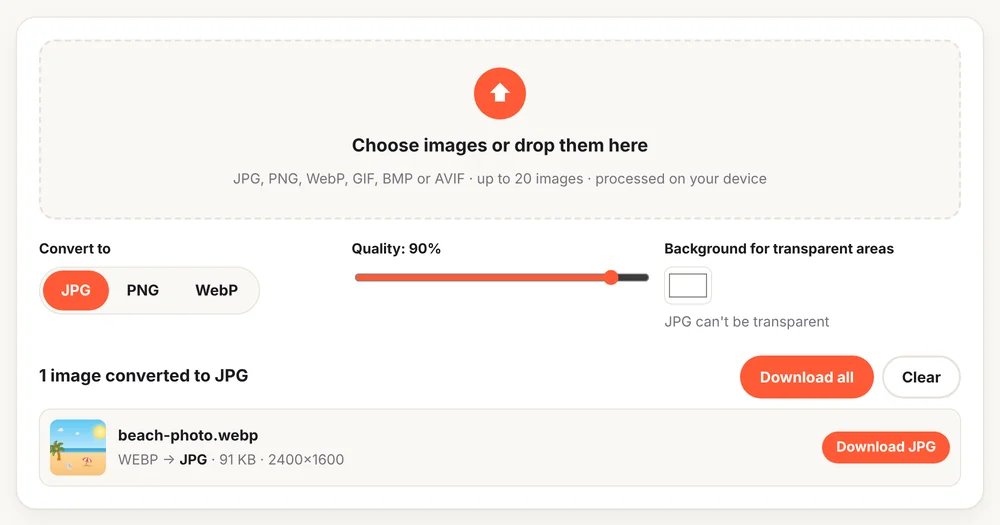
The conversion happens inside your browser, so your images are never uploaded to a server. It's quick, private and doesn't add a watermark.
Tip: if your WebP image has a transparent background, JPG can't keep the transparency. The converter fills transparent areas with white by default, and you can pick a different background color. If you need to keep transparency, choose PNG instead.
Built-in options on each device
On iPhone or iPad
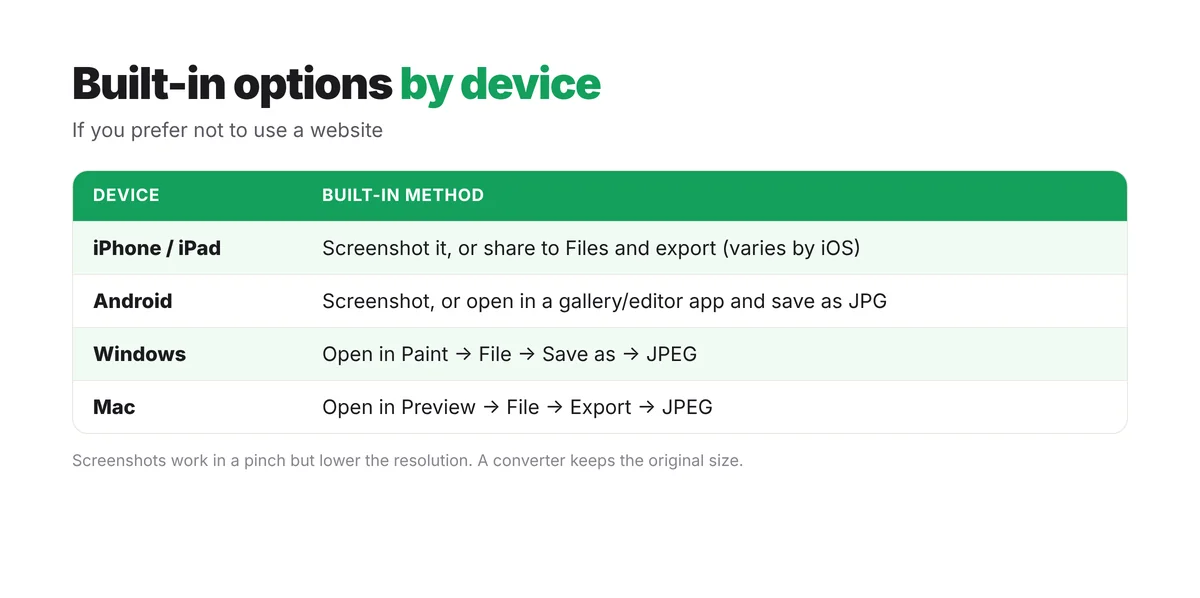
Recent versions of iOS can open WebP images, but some apps won't accept them for upload. The quickest built-in trick is to take a screenshot of the image, which saves as a PNG, but it lowers the quality and includes anything else on the screen. For a clean, full-size JPG, use the online converter in Safari: tap Choose images, pick the file from Photos or Files, then download the JPG.
On Android
Many gallery and photo-editing apps can open a WebP image and save or export a copy as JPG. Look for "Save as" or "Export" in the menu. The online converter works in Chrome as well, and the downloaded JPG appears in your Downloads folder.
On Windows
Open the WebP image in Paint, click File → Save as → JPEG picture, and choose where to save it. This works well for a single image. For many images at once, the online converter is faster.
On Mac
Open the image in Preview, then go to File → Export, choose JPEG as the format, adjust the quality slider and click Save.
Why do websites use WebP?
WebP files are usually around 25 to 35% smaller than JPG files of similar quality. That helps websites load faster, especially on phones. It's a great format for the web, just not always for sharing or uploading elsewhere. Learn more in what is a WebP file.
Tips for converting images
- Use a high quality setting. Converting at 90% keeps the image looking just like the original.
- Convert once. Repeatedly converting between lossy formats slowly lowers quality. Keep the original if you might need it again.
- Need a smaller file too? After converting, run the JPG through our image compressor.
- Respect copyright. Converting a file doesn't change who owns it. Only reuse images you have permission to use.
Frequently asked questions
Does converting WebP to JPG lose quality?
JPG uses lossy compression, so there's a tiny change, but at 90% quality it's practically invisible.
Why is my JPG bigger than the WebP?
That's normal. WebP compresses more efficiently, so the same image as a JPG is usually larger.
Can I convert JPG back to WebP?
Yes. Just select WebP in the converter instead of JPG. It's a great way to make images smaller for your own website.