How to Make a Meme: A Step-by-Step Guide for Beginners
Memes are the internet's favorite language. A good one can make a stranger laugh, sum up a feeling better than a paragraph, and get shared thousands of times. The best part? You don't need design skills or special apps to make one.
In this beginner's guide you'll learn how memes work, how to write captions that land, and how to make and share your first meme in about five minutes.
What makes a meme funny?
Most popular memes share three ingredients:
- Relatability. They point at a moment everyone has lived through: snoozing the alarm five times, group chat chaos, Monday mornings.
- Surprise. The caption sets up an expectation and then twists it.
- Brevity. They can be understood in about two seconds.
How to make a meme, step by step
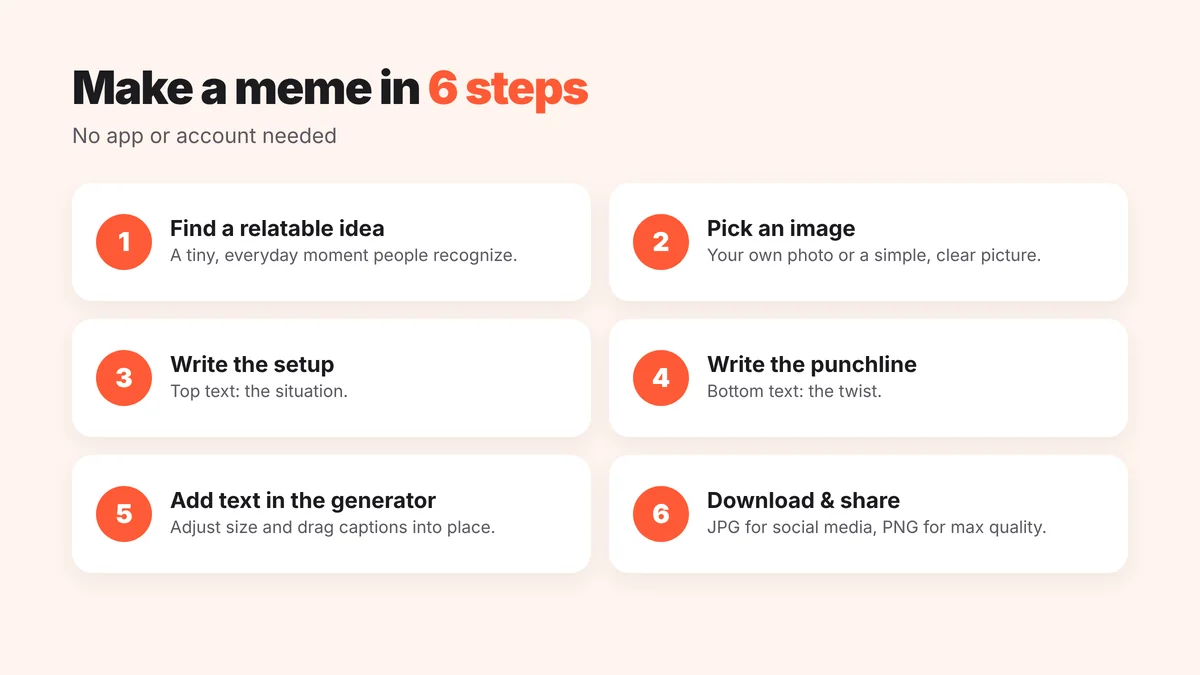
Step 1: Start with a relatable idea
Think of a small, everyday frustration or joy. Write it down as plainly as possible: "My dog thinks every word I say might be the word 'walk.'" That's your meme's heart.
Step 2: Choose an image
The best images show a clear facial expression or a funny moment. Your own photos are ideal: your pet, your messy desk, your burnt toast. They're original, and you don't have to worry about who owns them. If you use someone else's image, make sure you have the right to. Read more in our guide to meme copyright.
Step 3: Write the top text (the setup)
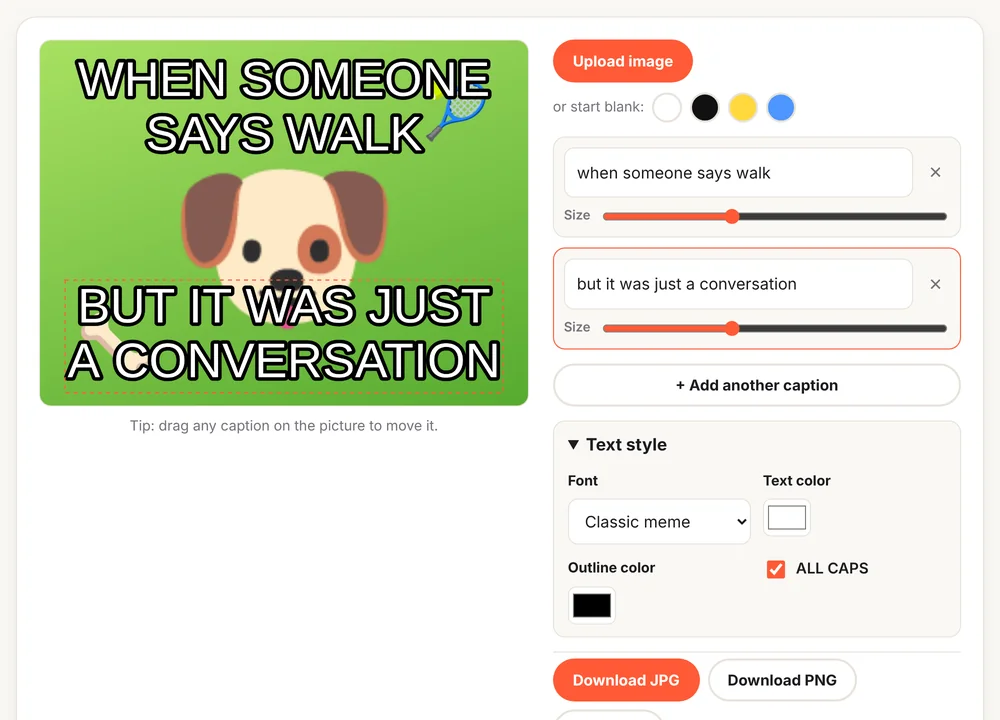
The top line sets the scene. Keep it short: "When someone says walk."
Step 4: Write the bottom text (the punchline)
The bottom line delivers the twist: "But it was just a conversation." Together, the image and the twist should make the joke.
Step 5: Add your text with a meme generator
- Open our free meme generator.
- Tap Upload image and choose your picture, or start with a blank colored background.
- Type your top text and bottom text.
- Use the size slider under each caption, and drag captions on the picture to move them.
- Choose Classic meme under Text style for the familiar bold white letters with a black outline.
Step 6: Download and share
Tap Download JPG for sharing on Facebook, Instagram or WhatsApp, or Download PNG if you want maximum quality. Your image never leaves your device while you're making the meme.
Tips for writing better meme captions
- Cut every extra word. If you can say it in five words instead of ten, do it.
- Use "when" and "me" formats. "When you…" and "Me: …" setups are popular because they're instantly relatable.
- Be specific. "When the Wi-Fi drops during the final boss fight" is funnier than "When the internet is bad."
- Read it out loud. If it sounds natural, it'll read naturally.
- Test it on a friend. If they smile, post it.
Popular meme formats to try
- Top and bottom text: the classic setup and punchline.
- Caption on top only: a single line above a reaction picture.
- Labels: short captions placed on different parts of the image to represent people or things.
- Expectation vs reality: two pictures with contrasting captions.
You can create all of these in the meme generator using Add another caption and dragging text where you need it.
Frequently asked questions
Do I need an app to make memes?
No. A browser-based meme generator works on any phone or computer.
What font do memes use?
Classic memes use a bold, condensed font with white letters and a thick black outline. Choose "Classic meme" in the generator for that look.
Where can I find meme ideas?
Look at your own day. For inspiration, see our funny Monday meme ideas and relatable meme ideas.