Why Fancy Text Shows Up as Boxes and How to Fix It
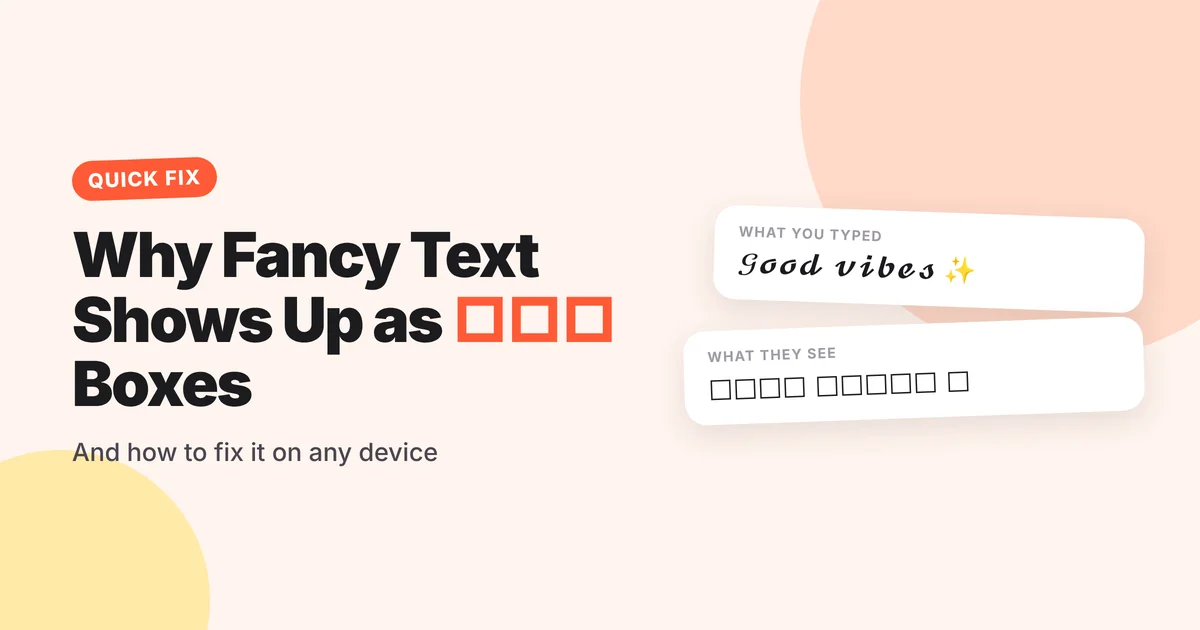
You found the perfect font for your bio, pasted it in and... your friend says it looks like a row of empty boxes: □□□□. Or maybe you see question marks, or a box with tiny numbers inside. Frustrating, right?
The good news is that nothing is broken. In this guide you'll learn exactly why fancy text sometimes turns into boxes, and what you can do about it on iPhone, Android, Windows and Mac.
Why fancy text turns into boxes
Fancy text is made of special Unicode characters. Unicode is the global standard that gives every letter, symbol and emoji its own unique code. Our fancy text generator swaps normal letters for look-alike characters, such as mathematical bold letters or circled letters.
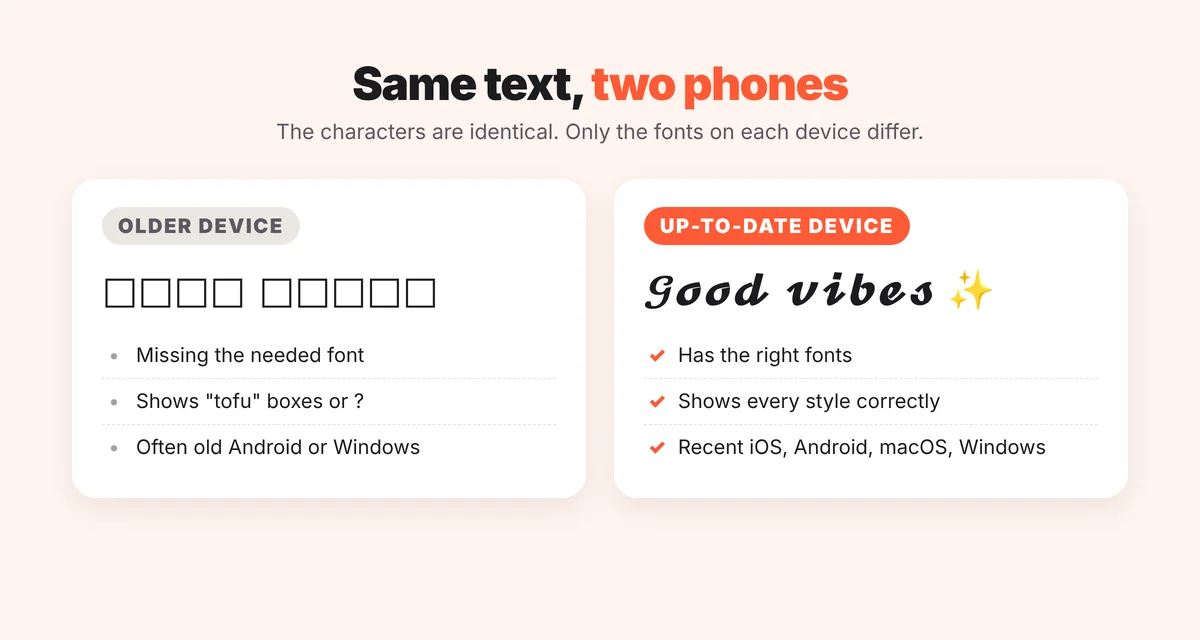
Every character needs a font that knows how to draw it. Your phone or computer comes with a set of fonts installed. When a device meets a character that none of its fonts can draw, it shows a placeholder instead. Designers even have a nickname for these boxes: "tofu," because they look like little blocks of tofu.
So the text you copied is fine. The device showing it simply doesn't have the right font.
Which devices are most likely to show boxes?
- Older Android phones, especially ones that no longer get system updates.
- Older versions of Windows, which lack some newer symbols.
- Smart TVs, game consoles and car screens, which often have very limited fonts.
- Some apps that use their own built-in font instead of the system font.
Recent iPhones, Android phones, Macs and Windows computers display almost all the popular styles without problems.
How to fix fancy text showing as boxes
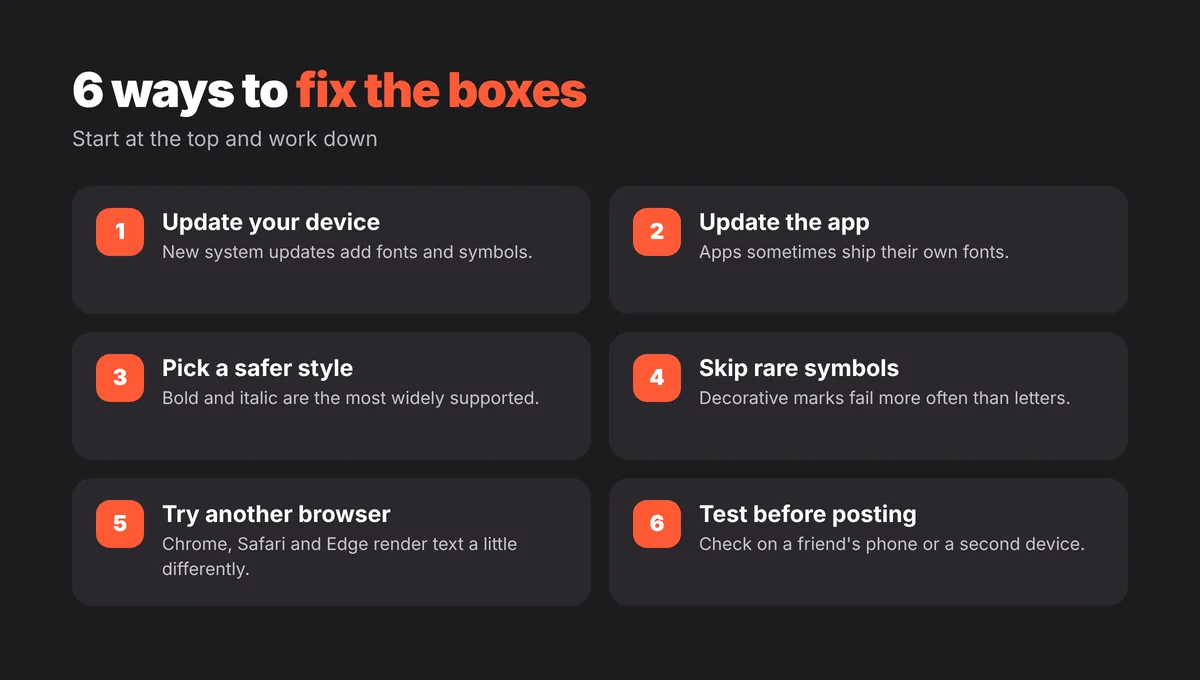
1. Update your phone or computer
System updates often add new fonts and symbols. On iPhone, go to Settings → General → Software Update. On Android, look for Settings → System → Software update (the exact path varies by brand). On Windows, open Settings → Windows Update, and on a Mac, go to System Settings → General → Software Update.
2. Update the app
If boxes only appear in one app, update it from the App Store or Google Play. Apps sometimes bundle their own fonts, and newer versions support more characters.
3. Choose a more widely supported style
Not all fancy styles are equally safe. In our experience, these work almost everywhere:
- 𝐁𝐨𝐥𝐝 and 𝐼𝑡𝑎𝑙𝑖𝑐
- 𝗕𝗼𝗹𝗱 𝘀𝗮𝗻𝘀
- 𝒞𝓊𝓇𝓈𝒾𝓋ℯ
- Ⓑⓤⓑⓑⓛⓔⓢ
Styles built from rarer characters, such as some small caps letters, upside-down text or unusual decorative symbols, are more likely to break on older devices.
4. Remove rare symbols
Often the letters display fine, but one decorative symbol in the middle turns into a box. Try removing symbols one at a time to find the culprit, or swap it for a common emoji.
5. Try a different browser
If you're seeing boxes on a website, open the same page in Chrome, Safari, Firefox or Edge. Browsers fall back to different fonts, so one may show the text correctly when another doesn't.
6. Test before you post
Before you update a business profile or a bio that lots of people will see, check it on a second device. Ask a friend with a different phone to take a look.
What if the boxes are on someone else's phone?
You can't install fonts on other people's devices, so the safest approach is to choose styles that work for everyone. For anything important, like your business name, contact details or a link, use normal text. Save fancy styles for decoration.
Frequently asked questions
Can I download a font to fix it?
On computers, installing a font with wide Unicode coverage, such as one from the free Noto family by Google, can help. On phones, it's usually easier to update the system.
Why does the text look fine on my phone but not on my laptop?
Each device has its own set of fonts. Your phone may have a font for the character while your laptop doesn't.
Will boxes hurt my profile?
They won't break anything, but people may not be able to read your name or bio. That's why it's best to style only a word or two. Learn more in our guide on bold and italic text on Facebook.