How to Shrink Photos for Online Job Applications and Forms
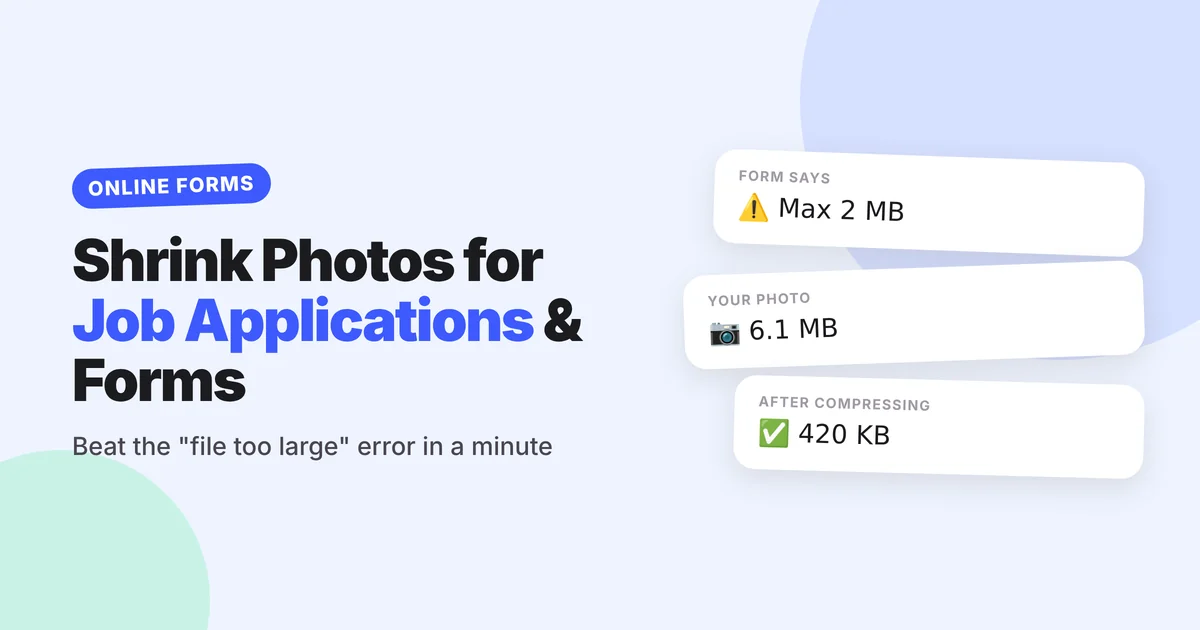
You've written the perfect cover letter, filled in every field, and then the job portal says: "File too large. Maximum size 2 MB." Or a school, insurance or government form keeps rejecting your scanned ID. It's one of the most common and annoying parts of applying for anything online.
The good news is that fixing it takes about a minute. Here's how to shrink photos and scans to the right size, without making them blurry or unreadable.
Why online forms limit file sizes
Websites that receive thousands of applications have to store every file. Large uploads also fail more often on slow connections. So most portals set a limit, commonly somewhere between 1 MB and 5 MB per file, and some ask for a specific format such as JPG or PDF.
Meanwhile, a single photo from a modern phone can be 3 to 8 MB. A scan from a phone app can be even bigger. That's why the mismatch happens so often.
Check the requirements first
Before you compress anything, look for these details near the upload button:
- Maximum file size (for example "max 2 MB" or "under 500 KB")
- Accepted formats (JPG, PNG, PDF)
- Pixel dimensions if they're specified (for example "at least 600 × 600 pixels")
- Photo rules for ID or passport-style photos, such as background color and head position
For official documents like passport or visa photos, always follow the exact rules on the official government website. They're often very specific.
How to shrink a photo for an online form
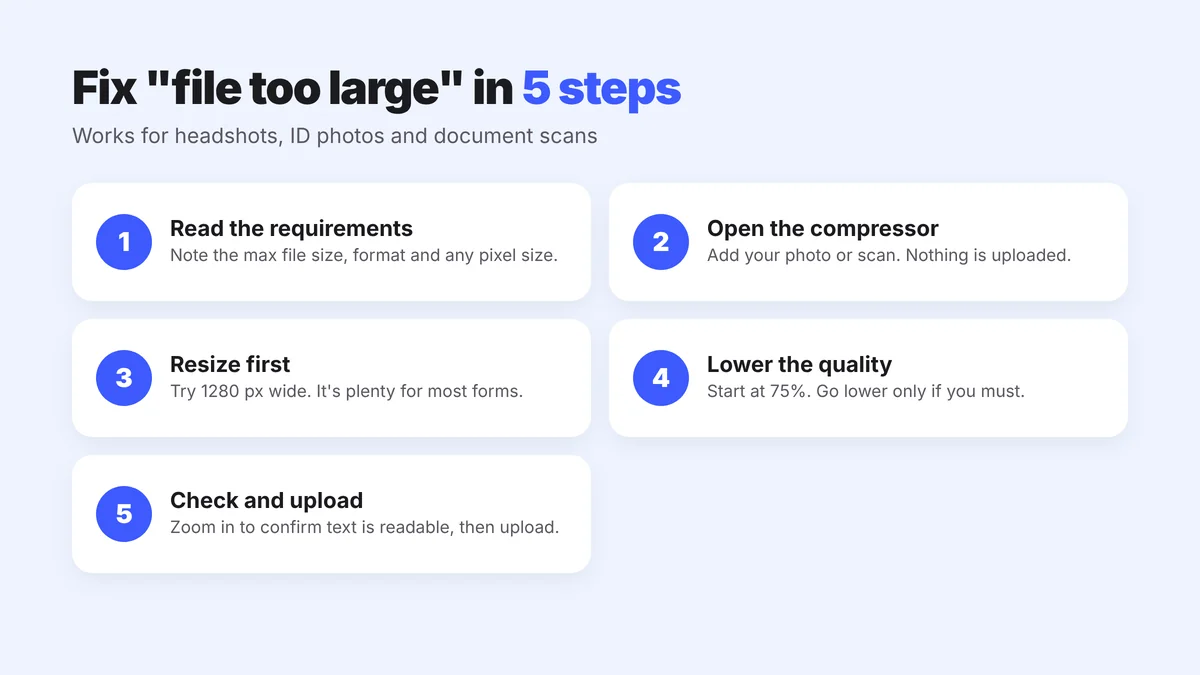
- Open our free image compressor. It runs in your browser, so your ID and personal photos are never uploaded to our server.
- Add your photo or scan.
- Set Max width to 1280 px. For most forms that's more than enough. If the form asks for a minimum size, make sure you stay above it.
- Leave quality at 75% and check the new file size shown.
- Still too big? Lower the width to 1080 or 800 px, or reduce the quality to 60%.
- Download the smaller file and upload it to the form.
What if the form only accepts JPG?
Photos from some phones are saved as HEIC, and images downloaded from websites are often WebP. Many forms reject both. Use our image converter to turn them into JPG first, then compress if needed. iPhone users can learn more in our guide to changing iPhone photos to JPG.
Tips for scanned documents
- Use good light and a flat surface. Shadows and curled pages are harder to read than a slightly smaller file.
- Crop out the background. Most phone scanner apps do this automatically. Less background means a smaller file.
- Check readability after compressing. Zoom in on small print like dates and ID numbers. If anything is fuzzy, increase the width or quality.
- Need a PDF? Many phones can save a photo as a PDF from the Print or Share menu. Compress the photo first so the PDF stays small.
Tips for a professional headshot
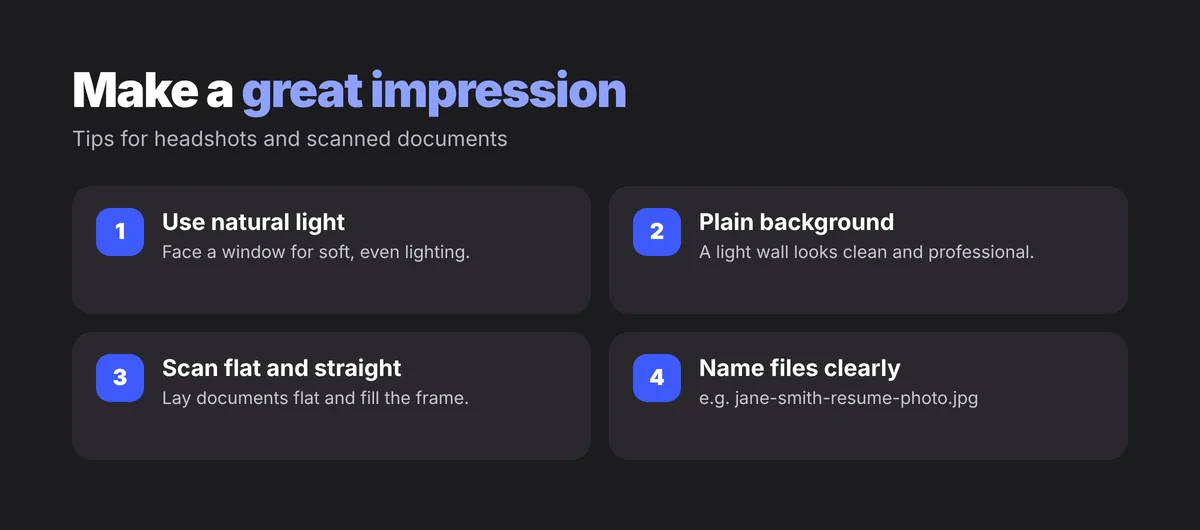
- Stand facing a window for soft, natural light.
- Use a plain, light background.
- Hold the camera at eye level, or ask a friend to take the photo.
- Crop to show your head and shoulders, with your face near the center.
- Save a high-quality original and a compressed copy for uploads.
Frequently asked questions
Will compressing my ID photo make it unacceptable?
Not if you stay within the form's requirements. Compression at sensible settings keeps the image clear. Always check minimum pixel sizes and zoom in on text before uploading.
The form says "under 100 KB." Is that possible?
Yes. Try a max width of 800 px and quality around 60%. Simple headshots compress very well.
Is it safe to compress personal documents online?
With our tool, yes: your files are processed entirely in your browser and never sent to a server. With other websites, check whether they upload your files before you use them for sensitive documents.
Learn more about compressing images without losing quality.